Showing posts with label Trellis plot. Show all posts

Thursday, April 4, 2013

plotting multiple scatter plots arranged in facets (trallis type) in Excel using RExcel with (with KMggplot2 plugins)

See the related posts on RExcel (for basic, Excel 2003 and Excel 2007) for basic information.

In previous post we created mutiple histograms arrange in row and column (facets, trallis type plots), we can do the same for the scatter plot using RExcel with (with KMggplot2 plugins). Basic step in data loading etc are same. We will use the same cabbage dataset  to deomstrate how we can do this.

 Data is loaded and active, we need to check histograms under KMggplot2 menu. Now we have choice for X variable, Y variable, stratum variable, Facet variable in row or column direction. We can add smoothing curves or opt out by clicking none.


See the nicely arranged publication ready graphs:


plotting multiple histograms arranged in facets (trallis type) in Excel using RExcel with (with KMggplot2 plugins)

See the related posts on RExcel (for basic, Excel 2003 and Excel 2007) for basic information.

We discussed how we can use RExcel in previous posts and we used RExcel we generate voilin box plot and plots. Following the similar steps we can generate mutiple histograms, arranged compact in trallis type fashion.

(1) First load R and then R commander to see R menu in Excel (see previous posts)

(2) Following example uses dataset cabages from the R dataset library. Load the data.

(3) KMggplot2 (unlike other menus is not activated as such), you need to go to tools and then click Load Pug-ins and then select RcmdrPlugin.KMggplot2. It will promt you to restart Rcmcdr click OK. Now you can see a menu with KMggplot2 in your RExcel menus.

(3) Now click  Histogram under KMggplot2 menu. You can see the histogram  box where we have specify different parameters inclusing variable to be plotted, which variable is in rows or columns in facets etc.


See now you have histograms nice looking !

You can density curve over the histograms, also you can also include heatmap within the histogram (cool !) - just click Desnity estimation and or heatmap under options . We are using different variable to pick in the following example.


creating voilin plot / box plot in Excel, using REcel (with KMggplot2 plugins)

See the related posts on RExcel (for basic, Excel 2003 and Excel 2007) for basic information.

We discussed how we can use RExcel in previous posts. By implementing RExcel we generate voilin plots (alternative to box plot in look)

(1) First load R and then R commander to see R menu in Excel (see previous posts)

(2) Following example uses dataset cabages from the R dataset library. Load the data.

(3) KMggplot2 (unlike other menus is not activated as such), you need to go to tools and then click Load Pug-ins and then select RcmdrPlugin.KMggplot2. It will promt you to restart Rcmcdr click OK. Now you can see a menu with KMggplot2 in your RExcel menus.


(4)  Now under KMggplot2 menu click Box plot / Voilin plot / Confidence interval. You can then choose volin or box plot. Pick X and Y variable. X variable can be more than one, if you want to create multi-faceted trallis plot.


So you got your volin plot.


You can produce boxplot instead, just change plot type (perhaps using different grouping structure):


Happy plotting !!

Tuesday, April 2, 2013

Extend your Excel graphics capabilities using R-Excel - no programming knowledge needed !

RExcel extends graphical capability of Excel - once you installed R-Excel and R program properly - you do necessarily need knowledge of R programming - most importantly R and Rexcel is free. Down side is that RExcel is only available for 2003, 2007 and 2010 Excel versions (download and instructions are here). Easiest way to install would be download the file RAndFriendsSetup2152V3.2-9-1 and follow the install steps.

The Excel add in RExcel.xla permits using R within excel in your figure tips (not necessarily need for programming skills). Here there are two types of servers - background (completely hidden from user and all of the interaction with R should be done within Excel) and foreground (you can access to R graphical user interface while working in R).  The backgound server should be installed with the R(D)COM server - which depends upon R package rcom, can be installed from Comprehensive R network. Installation is not that complicated, the above link provides packages that install everything needed.


Although there are different ways to use R within Excel, the most easy way is to use as worksheet function (R functions are called in worksheet). I think for the graphical purpose, this only can help alot to create nice graphics - extending RExcel capabilities.

The following steps are RExcel in Excel 2003. Once every thing set of correctly you can see RExcel in Add-Ins and a new menu appears before Help menu in the corner. Now under menu click run R.


Then you will see menu change and then click R commander with Excel menus. Now whole set of menu are activated for R use within excel. It includes Graphs too.


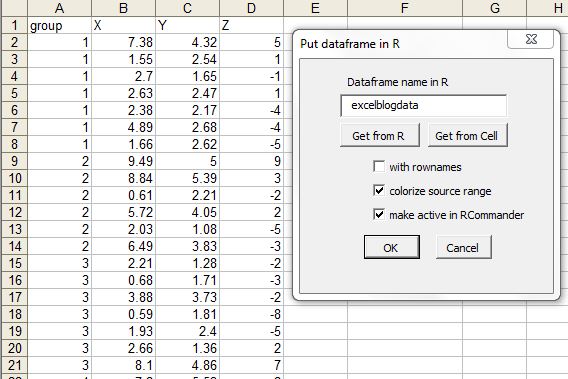
Select the data area and click put R dataframe, then it will prompt you to get the name of R dataset. So these cells will stay as R data set available for use in later sessions.


Here I have provided excelblogdata name to the dataset. The dataset name will be listed in Dataset drop down list.


Now let's do some plotting that we can not easily do in excel. Select XY conditioning plot from the Graphs menu in RExcel menu.


Now you can see nice trellis plot (uses R/lattice package) in R plot window.


Plotting 2 variables in Y axis.


Scatter plot matrix is useful when there are many variables. Here we have scatter plot matrix with histogram in the center.


.

Finally there are several other features useful for nice visualization in RExcel. Most importantly it takes some flavor of R to Excel. Happy plotting !


Sunday, March 31, 2013

comparision of multiple histograms or density plots non-overlayed in in single plot in Excell

Sometime we might be interested to compare the distributions (using histogram or line plot), which are not overlayed but a series of subplot within a single plot. The following section discuss the tricks:

(1) First of all we calculate frequency for each series of data and store arranged in a table like above. Now we calculate density by dividing Frequency by total number (summation of frequncy in each column). Also calculate maximum density so that w can use this to weigh all density and calculate weighing factor that fits in the plot area. Also we need to provide a number where the Y series will be plotted. Here we have considered 1, 2,3, 4 so that the histograms will be based on 1, 2,3, 4 lines in Y axis.


(4)  Now we need weigh the density by constant factor so that they fit in 1 heigh interval in Y axis.
Here I used the formula =(0.9*(S2/$AF$3)), for example so that maximum value will be 0.9 so that there will a gap of 0.1 between Y1 and Y2, Y2 and Y3 or similarly other consequitive series plot. You can scale to 1 too but the maximum bars will then touch to another series.


(5) Now we can add XY scatter plot. Just create pseudo series with any two data series, we will modify it by secificing proper range later.


(6) Now we start editing source data. Here X value for bin range and Y is constant number where the series withing plot need to plotted (i.e. 1, 2,3,4 in our case).


Now just point plot will look like the following:
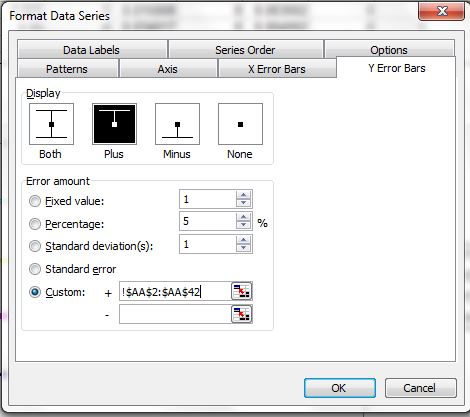
 (7) Now add the error bar to each point. Add plus error bars with custom series where height is weighted density. You want to modify the error bars without having cap.


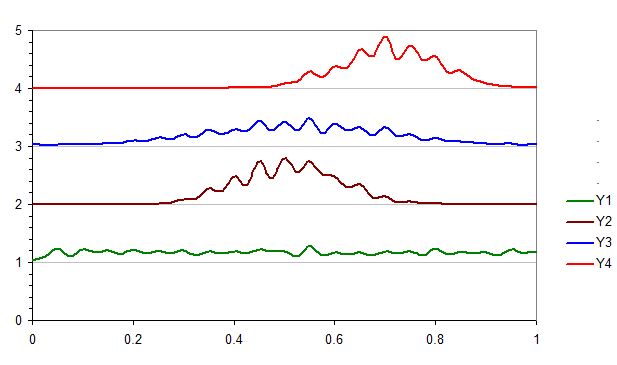
(8) Now we can add the line to plot by adding new data series. But we need a trick, now we need to add the Y position (1,2,3,4) to the wieghted density calculated. Then you get points and convert the points to lines type XY plot.


(9) You can remove the bars if you want to by editing error bar setting to no error bars.

(10) If want to overlay one or more series (for example Y1 and Y2 in same pair, Y3 and Y4 in another ), you can change the value of y axis plotting values. For example Y1 and Y2 was set to 1 and Y3 and Y4 was set to 3 in the following plot.