Showing posts with label 3D plot. Show all posts

Wednesday, April 3, 2013

3D Scatter plot in Excel (using RExcel)

See the related posts on RExcel (for basic, Excel 2003 and  Excel 2007) for basic information.

RExcel can produce interactive 3D-scatter plot. For this we need to creat a dataset (please see previous posts to create a dataset in RExcel). Then go to the graphs menu and then select 3D scatter plot. Plots are nice and interactive !!!!

Now select two explanatory variable and two response variable by clicking holding ctrl: If you like to identify the observation holding with mouse check the box labeled with "Identify observations with mouse". If you have more than one group we can do by group too.


In RGL device you can see 3D nice scatter plot.


You can rotate the axis to see the distribution at different angle. You can also identify the points by clicking them.


Tuesday, April 2, 2013

Creating fancy looking pie charts in excel 2013

Mostly in business presentation pie chart dominates - as this looks fancy !

We just click the two data series and then get results:


Now we do many things to it, as we need:

(1) It is like pizza - you can just take a slice out ! may be favorable one. We can animate it in power point slide as if we are pully it during presentation.


(2)  Under design menu there are several build in designs - you might want to apply some of them:


(3)  3D pie chart : 3D effects are often liked as they look fantastic ! Appropriateness in terms of scietific presentation is always questionable ! You can pull out segments of 3D pie chart in the same way.

(4) Sub pie chart: You can further develop another pie to show component of selected segment.


Many to do - but just want show some taste !

3D-histogram in Excel


Histogram can be both 2D and 3D. By 3D I do not mean 3D bars rather threre are two variables (X and Y and frequency is plotted in Z axis).

After  preparing data category (see the article), we can create a 3D histogram. So we need a two way frequency count table  like this:


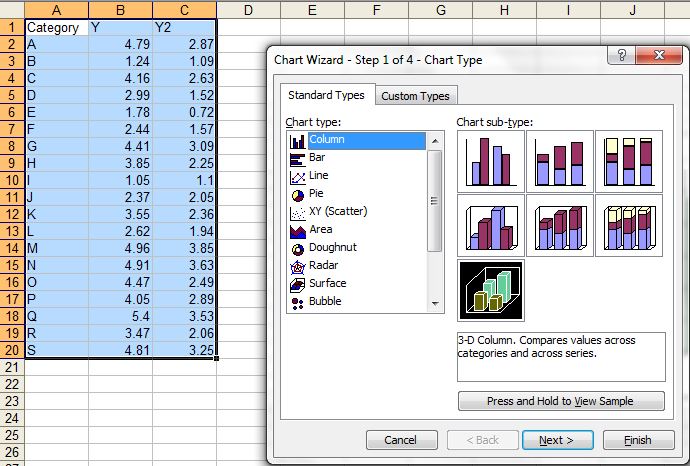
The insert 3D column chart. We can then modify this remove gaps (looks like a block).


We can creat columns with different shape( may be just for fun !).


We can change the type to 3D- wire frame plot.


Monday, April 1, 2013

simple graphs with excel - things you know or might not know !

Excel is most frequently used for spread sheet application. When comes to graphics, it does great quality graphs however does not do what advanced user need to. However, many time we under estimate its ability and switch to less user-friendly and / or lower quality graphics software  In this post we will discuss on very simple graphics that excel can do (check if something is new for you):

(1) XY scatter plot
This is most common and informative graph in scientific world as it can compare two variable.


In scatter plot many times we want to add prediction lines with associate model. We can add more than one Y variable so that we can make comparison in trend.


(B) Bar (Row or Column Plots)
Bar plots are useful when categorical variable is plotted with a  numerical variable. Even if we want to plot numerical with numerical variable - one must be treated as categorical so that the bars are spaced as equal distance (not based on difference between them).


Sometime we might want to have some fancy looking 3D bar plots. They do not necessarily augment the plots, but looks nice for business charts .. 


(C) Line plot 
Line plot work in the same way as bar plot, however the lines are connected, useful to see a trend. In contrast XY plot where both axis are quantitative, here one variable is categorical. 


We can convert any of line series to bar chart so that we can represent one variable as bar and another as line. 


(D) Area plot:
Area plots are suitable in some cases where we are interested in looking area under the curve. We can overlay more than one series in the same plot. 


(E) Pie chart:
Pie chart  are also popular in business charts, however their suitability in science is much argued. They are useful show composition or share of total (like percent).


Some resources: 

(1) Basic idea on how to plot graph and edit its components, see this video. Here is another video tutorial that shows how to add error bars to the plot. 


(3) Video showing how we can plot multiple plot in single chart with additional axis


Wednesday, March 27, 2013

3D plots (wireframe, level , contour) in Excel

The following example shows plotting of a volcano data from R datasets in Excel 2013.

The data can be available from R:

data(volcano)
write.table (volcano, file = "volcano.txt")

(1)  As the title of X and Y axis in excel are treated as text (not a numeric data point), the format the names as text. Please note that if the data in X and Y are quantative need to be in equal bin size for accurate display.

(2) Select data, A1:BJ88 and click stock, surfcae, radar icon. Then click 3-D surface under surface icon.


(3) Edit the axis so that plot starts at 90 at Z axis.


Now we change the style as many way we want. We can do 3D rotations. X rotation and Y rotation to 45 degree witll look like:


You can change the color gradiant to make sense.  Click page layout and then colors, you can then define your own color or office color available that are short continoum.


 There are different variations available in style.  Click the chart aree you will see the chart styles in the menu to choose.


Also the chart can be converted to other 3-variable (true and psudo 3D plots):